
Here’s an uncomfortable stat: 73% of B2B companies run at least two domains that their customers interact with during the buying process. For global brands and multi-brand organizations, that number gets much higher. And every domain boundary is a place where GA4 quietly breaks the user journey apart.
That’s the problem most analytics tutorials gloss over.
By default, GA4 tracks users with first-party cookies locked to a single domain. Move a visitor from your main site to a separate checkout domain and GA4 treats them as a brand-new person, starting a fresh session. Traffic sources vanish. Conversion data gets distorted. Attribution stops reflecting what’s actually happening.
This guide covers GA4 cross-domain tracking from first configuration through the advanced setup that multi-brand and global sites actually need. You’ll get the core steps every tutorial covers, plus the stuff most skip: what to do when you’re managing five domains across three brands in four countries, how GDPR cookie consent laws interact with the GA4 linker parameter, and when BigQuery becomes the only way to stitch together journeys the GA4 UI can’t handle on its own.
What Is GA4 Cross-Domain Tracking?
GA4 uses first-party cookies stored on one domain. Those cookies don’t cross top-level domain boundaries. So when a visitor navigates from brand.com to checkout-brand.com, GA4 sees two entirely different people on two different websites.
Cross-domain tracking fixes this. It appends a _gl parameter to the URL whenever a user follows a link from one tracked domain to another. The destination domain reads that parameter, matches the user ID, and stitches the sessions together. From GA4’s point of view, the user never left. One user. One session. Correct attribution across every linked domain.
One thing worth knowing before you touch any settings: subdomains don’t need this. GA4 handles shop.example.com and www.example.com automatically because first-party cookies cover all subdomains natively. You only need cross-domain tracking when you’re crossing into a completely different top-level domain, like going from example.com to example.co.uk, or from example.com to checkout-example.com.
Who Needs Cross-Domain Tracking?
Not every site needs this configuration. But if you recognize any of these scenarios, you do.
- An ecommerce site where checkout lives on a separate domain or third-party URL
- A marketing site at example.com paired with a SaaS app at app.example.io (different TLD)
- Multiple brands in a portfolio, each on its own domain, sharing a checkout or customer portal
- Global sites running country-code TLDs (example.com, example.co.uk, example.de), all part of the same organization
- A booking platform, payment processor, or lead-capture form hosted on a partner’s domain
The quickest diagnostic: go to GA4 Reports > Acquisition > Traffic Acquisition and filter by session source. If your own domains show up as referral sources (if brand.com appears to be sending traffic to itself), you’ve got a self-referral problem from missing or misconfigured cross-domain setup. See our Google Tag Manager setup guide for related tracking configuration context.
Before You Start: Prerequisites
Pull these together before you touch any settings. Missing even one of them will either break the setup or leave gaps in your data.
- GA4 Admin access at Editor or Administrator level on the property
- GTM access to every domain you want to track, or direct access to edit gtag.js on each domain
- A full list of all your domains (every single one, not just the primary plus checkout)
- Confirmation that all domains are sending data to the same GA4 Measurement ID (G-XXXXXXXX)
- An existing GA4 web data stream already set up for the property
- Tag Assistant or GA4 DebugView ready for post-configuration testing
One important decision to make first. Before you start your GA4 setup: if multiple brands each have their own GA4 property, understand that cross-domain tracking only works within a property, not across separate ones. You’ll need to decide whether to consolidate or keep separate properties and accept that cross-brand user journeys won’t be stitchable in the GA4 interface.
Step 1: Add Your GA4 Tag to All Domains
Here’s the foundation everything else rests on. Cross-domain tracking can only stitch sessions on domains that all send data to the same GA4 Measurement ID. If any domain uses a different ID, the journey breaks at that boundary. Period.
Via Google Tag Manager: Open GTM for each domain. Find your GA4 Configuration Tag. Create one if it’s missing. Check that the Measurement ID field shows the same G-XXXXXXXX value across every container. If you’re running separate GTM containers for different brands or regions, each one still needs that same Measurement ID.
Via gtag.js: Make sure the config line reads identically on every domain: gtag(‘config’, ‘G-XXXXXXXX’);
The most common mistake at this stage is finding that different domains were set up with different measurement IDs. It happens often when an agency built a separate GA4 property for each brand or region. If that’s where you’re starting, sort out your property architecture before going any further.
To verify things are working: open GA4 DebugView (Admin > DebugView) and navigate to each domain in a debug-enabled browser session. You should see events from each domain flowing into the same DebugView panel, all under the same Measurement ID.
Step 2: Configure Cross-Domain Measurement in GA4
This is the core step. Navigate here:
GA4 Admin > Data Streams > [your web stream] > Configure tag settings > Configure your domains
You’ll see a section called “Include domains that match ANY of the following conditions.” This is your domain list. Add every domain that should be connected.
For each domain:
- Click “Add condition”
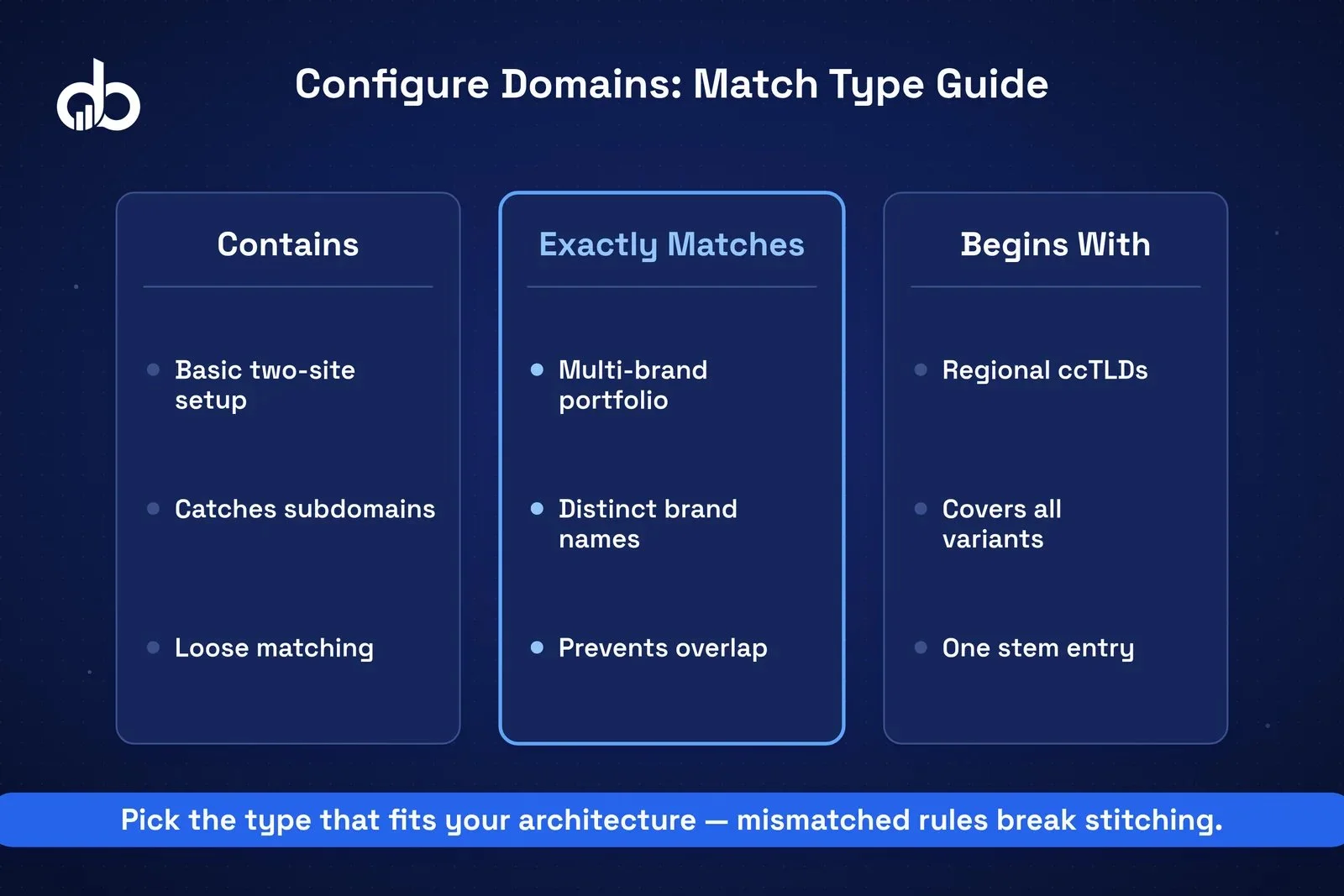
- Pick a match type: Contains, Exactly matches, or Begins with
- Type the domain value (e.g., example.com)
- Repeat for every domain in your network
Choosing the right match type matters more than it might seem:
- Contains is fine for basic setups: example catches example.com and checkout.example.io.
- Exactly matches is the right call for multi-brand setups where brands have different names under a shared org property.
- Begins with works well for regional domains: example picks up example.com, example.co.uk, and example.com.au in one go.
One thing most guides don’t mention: adding example.com does not cover example.co.uk. For global tracking across ccTLDs, you need to add each country domain individually.
Don’t skip this: In the same Admin section, go to Data Streams > More Tagging Settings > List unwanted referrals. Add your own domains there. Without this step, GA4 treats your own internal cross-domain traffic as referral traffic, which pollutes your Acquisition reports permanently.
Hit Save.
Step 3: Verify Cross-Domain Tracking Is Working
Don’t trust the configuration until you’ve seen it work. Here are three methods, ordered by how fast they give you an answer.
Google Tag Assistant: Install the Chrome extension. Navigate from Domain A, click a link to Domain B, and watch the address bar as Domain B loads. You want to see this:
https://checkout-example.com/cart?_gl=1abc123…
No _gl parameter? Either Domain B wasn’t added to the list in Step 2, or the GA4 tag isn’t firing correctly on Domain A.
GA4 DebugView: Keep DebugView open in one tab while you navigate cross-domain in another. When the link click happens, you should NOT see a new session_start event appear on Domain B. If one fires, the stitching failed and the session broke.
Traffic Acquisition Report (48 hours post-setup): Pull up Acquisition > Traffic Acquisition. Filter by session source. Your own domains shouldn’t be appearing as referral sources. If they still are, go back and check your Referral Exclusion List.
Step 4: Handle Common Pitfalls
The basic three-step setup works cleanly for simple two-domain scenarios. These are the situations that break it.
Self-referral loops. Your domain shows up as a referral source in reports. Fix it by adding your domain to the Referral Exclusion List (Admin > Data Streams > More Tagging Settings > List unwanted referrals) and confirming it’s also in your Configure Domains list. You genuinely need both. One without the other doesn’t solve the problem.
Session inflation from duplicate tags. User and session counts are running way higher than they should. Check whether you’ve accidentally deployed both a gtag.js snippet and a GTM GA4 Configuration Tag on the same pages. That fires two tags per visit. Use GTM exclusively and pull out any hardcoded snippets.
Cookie consent platforms blocking the linker. This catches a lot of teams off guard, especially those operating under GDPR or CCPA. Some CMPs block all JavaScript until the user accepts cookies. When that happens, the GA4 tag can’t run and the _gl parameter never gets appended. Most enterprise CMPs (OneTrust, Cookiebot, TrustArc) let you specify which scripts load before consent. For EU traffic, consider implementing Google Consent Mode v2 to maintain some measurement signal even when users decline analytics cookies.
Third-party checkout domains. If checkout is handled by Stripe, PayPal, or another platform you don’t control, you can’t add their domain to your Configure Domains list. The workaround: fire your conversion events before the user leaves your domain. Set up add_to_cart, begin_checkout, and a purchase event triggered by the thank-you URL once the payment processor redirects back. Many processors also offer server-side event integrations.
Need Help Setting Up GA4 Cross-Domain Tracking? Our analytics team configures GA4 cross-domain tracking for global and multi-brand sites. No data gaps, no inflated session counts. Get Free Marketing Audit
Step 5: Advanced Setup for Multi-Brand and Global Sites
The steps above handle a standard two-domain architecture. Once you’re managing multiple brands or running global tracking across regional domains, you need to make architectural decisions that most GA4 tutorials simply don’t cover.
Single property vs. multiple properties
This is the most consequential call you’ll make.
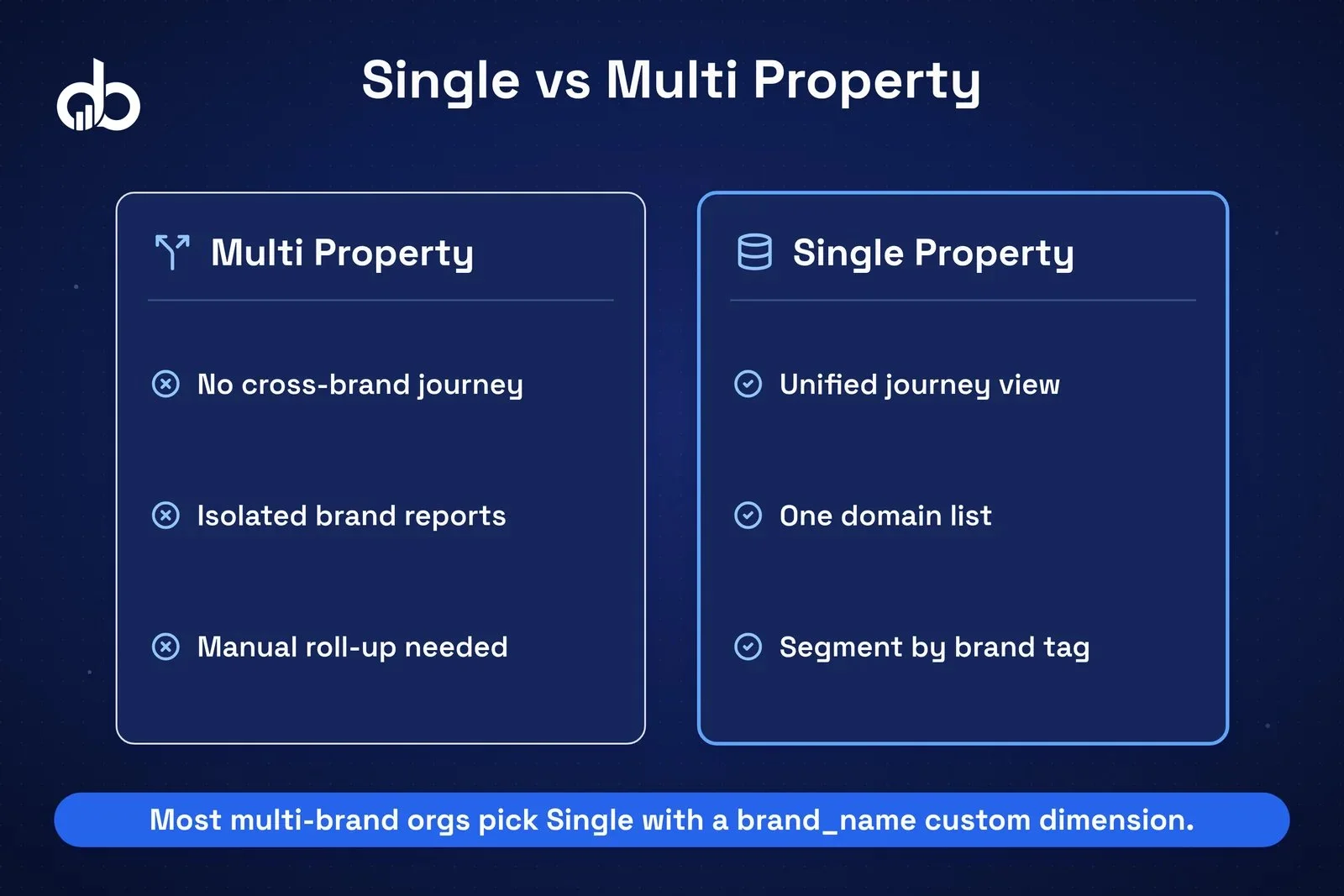
One GA4 property across all brands gives you a unified view of cross-brand user journeys. It’s also the simpler cross-domain setup: one Configure Domains list, one set of referral exclusions. The trade-off is reporting complexity. You’ll need custom dimensions to segment by brand, and that gets complicated as the number of brands grows.
Separate GA4 properties per brand keep reporting clean and isolated for each team. But you lose the ability to track a user’s journey across brands in the GA4 UI. For most organizations where brands operate independently, separate properties are still the right answer. Use a single consolidated property only when cross-brand journey analysis is a genuine business requirement.
GTM container strategy for multi-brand sites
Option A: single GTM container across all domains. Configure cross-domain tracking once in the GA4 Configuration Tag. Easiest to maintain, but brand teams share access.
Option B: separate GTM containers per brand or domain. Each gets its own GA4 Configuration Tag with its own cross-domain configuration. More overhead, but brand teams work independently. GTM Workspaces and container-level access permissions keep teams from overwriting each other’s configurations.
Global sites with ccTLDs
Add every regional TLD to your Configure Domains list, one by one. Then add a custom event parameter (site_region is a clean choice) that fires on every page and identifies which regional domain the session started on. This lets you cut GA4 reports by geography while still stitching cross-domain sessions.
Cookie consent requirements vary by country. EU domains need GDPR-compliant banners and Google Consent Mode v2. Australian domains fall under ACCC rules. US domains typically don’t require opt-in consent for analytics. Your CMP needs to handle consent per-domain, not with a single global banner applied everywhere.
When BigQuery becomes necessary
At a certain scale of domain complexity, the GA4 interface can’t surface what you need. Export to BigQuery. It’s free for up to 1 million events per day.
Inside BigQuery, you can write SQL queries against user_pseudo_id to reconstruct journeys across multiple sessions and brands. Journeys that span weeks, multiple touchpoints, and several domains. The kind of analysis the GA4 interface can’t stitch together.
Our Analytics & Tracking team uses this approach with clients running five or more domains across multiple brands and markets.
Common Mistakes to Avoid
Adding only two domains when your network has more. If you have five domains and only list two, any user who reaches the unlisted ones breaks the session. Every domain goes on the list. Every single one.
Running different GA4 Measurement IDs on different domains. You can only stitch sessions within a single GA4 property. Different IDs produce separate, unconnected datasets. No amount of configuration bridges that gap.
Skipping the Referral Exclusion List. Setting up the domain list doesn’t automatically fix self-referral attribution. You need both settings working together.
Not re-testing after changes. A GTM update, a domain change, or a CMP reconfiguration can silently break cross-domain tracking. Build a testing checklist and run it after any significant change to your analytics infrastructure.
Treating a subdomain problem like a cross-domain problem. Session breaks between www.example.com and shop.example.com are a subdomain cookie issue, not a cross-domain tracking issue. It’s a different root cause with a different fix.
Conclusion
GA4 cross-domain tracking is one of those things that looks straightforward until you’re actually in it.
For a basic two-domain setup, the steps in this guide will get you there in an hour. For multi-brand sites and global tracking across regional TLDs, you’re making decisions about analytics architecture that’ll shape your data quality for years.
The payoff is real. One case study showed organic search conversions jumping from 302 to 1,126 per month after GA4 cross-domain tracking was properly configured. Not because traffic increased. Because the reporting finally reflected what was actually happening.
If you’re managing multiple brands, regional ccTLDs, or a shared checkout infrastructure, it’s worth getting your GA4 setup right the first time. Work through Steps 1–3, address the pitfalls in Step 4, and think through the multi-brand architecture in Step 5 before you configure anything.
For complex environments, our Analytics & Tracking team handles GA4 cross-domain configuration for agencies and in-house teams managing multi-domain setups across global markets.
- GA4 cross-domain tracking uses a _gl URL parameter to stitch sessions across separate top-level domains — subdomains do not need it.
- You must add all domains to GA4's "Configure Domains" list under Admin → Data Streams, otherwise self-referrals break attribution.
- Verify setup in real time with GA4 DebugView and Tag Assistant before launching — wait 24–48 hours for Acquisition reports to stabilize.
- Multi-brand organizations can consolidate all brands into one GA4 property with custom dimensions, or keep separate properties and join in BigQuery.
- Use "Exactly matches" domain conditions for multi-brand setups to prevent one brand's domains from accidentally being included in another's tracking.
Frequently Asked Questions
Does GA4 cross-domain tracking work with cookie consent banners?
It depends on your Consent Management Platform and how it's set up. The _gl parameter lives in the URL, not in a cookie, so technically it can function even when cookies are blocked. But if your CMP blocks the GA4 JavaScript tag entirely before any consent is given, the tag won't run and the linker won't fire. The fix: configure your CMP to allow the GA4 tag before consent, or implement Google Consent Mode v2 so that partial measurement signals are preserved even when users decline analytics cookies.
Do I need cross-domain tracking for subdomains?
No. GA4 handles subdomains automatically because first-party cookies cover all subdomains on the same domain natively. So www.example.com and shop.example.com share the same cookie without any configuration needed. You only need cross-domain tracking when moving to a genuinely different top-level domain, like from example.com to example.co.uk or to checkout-example.com.
Can I track users across different GA4 properties?
Not through the GA4 UI. Cross-domain tracking works within a single property. If Brand A and Brand B each have their own GA4 properties, there's no native way to stitch a user's journey across both. To do that, either consolidate into a single property or export both properties to BigQuery and join sessions on user_pseudo_id in SQL.
How long before cross-domain tracking shows in GA4 reports?
The configuration itself takes effect almost immediately for new sessions. That said, wait 24–48 hours before checking your Acquisition reports, so you have enough data to confirm self-referral traffic has stopped appearing. For immediate testing, DebugView and Tag Assistant both give you real-time feedback while you're setting things up.