
Every time your marketing team needs a new pixel, a conversion event, or a remarketing tag, someone files a developer ticket — and waits. Google Tag Manager was built to end that wait, and most teams never use even half of what it can do. With 73.5% of the top one million websites already running GTM and the platform holding a 94% market share among tag management systems, this isn’t a specialty tool anymore. It’s the infrastructure layer your entire digital marketing tracking stack runs on — and teams still treating it as a basic tag container are making decisions with data they can’t fully trust.
What Is Google Tag Manager and Why Does It Matter?
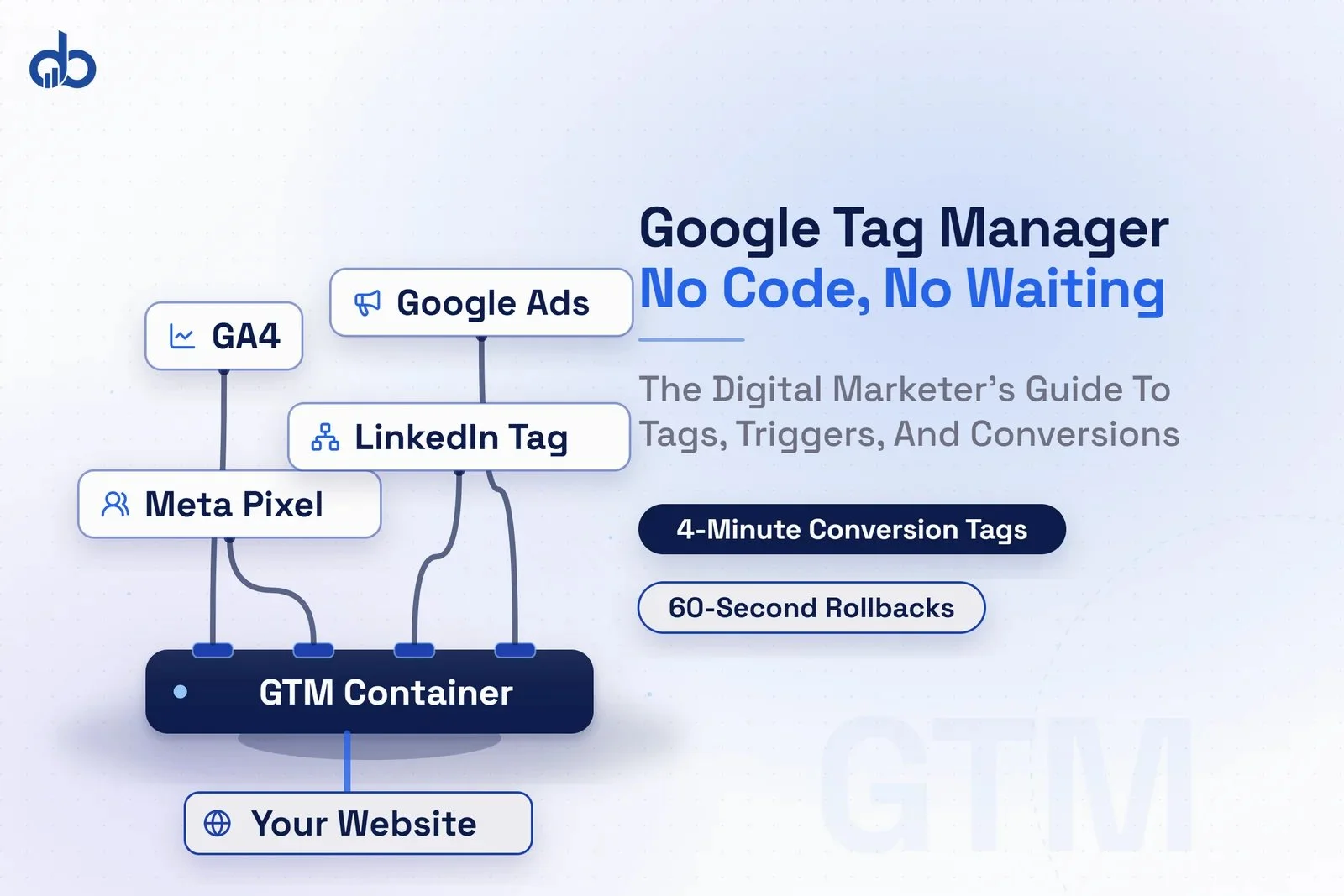
Google Tag Manager is a free tag management system that acts as a container for every tracking script on your website. Instead of embedding dozens of marketing pixels directly into your site’s code, you place one GTM snippet on every page. From that point forward, you manage all your tags — Google Analytics 4, Google Ads conversion tracking, Meta Pixel, LinkedIn Insight Tag, and more — entirely from the GTM dashboard. No touching your website’s codebase again.
The market has made its verdict clear. GTM commands 94% of the tag management market and powers 5.4 million active domains as of July 2025. When you look at the websites competing in your category, roughly three in four of the top one million sites are already running it.
The reason is practical: developer time is expensive and finite. A new Facebook campaign needs a pixel. A new landing page test needs a conversion event. A new email sequence needs UTM tracking. Without GTM, each of those is a developer ticket, a sprint queue slot, and a delay that costs you campaign performance while your competitors launch faster. That bottleneck is the real problem GTM solves.
GTM loads tags asynchronously — they fire in parallel with your page content instead of blocking its render. This removes one of the most common causes of slow page loads from third-party scripts. And unlike hardcoded snippets scattered across your codebase, a single GTM container is far easier to audit and control.
Before adding GTM to your site, audit every existing tracking script already running. A common setup mistake is installing GTM and leaving old hardcoded scripts in place — this creates duplicate data that silently inflates your metrics for months.
The Core Concepts: Tags, Triggers, and Variables Explained
Before you open GTM, you need to understand three terms. Every GTM tutorial, every setup guide, and every training course comes back to these same three building blocks — because confusing them makes the rest of the interface harder than it needs to be.
Tags are the scripts you want to run. A GA4 Configuration tag sends data to Google Analytics. A Google Ads conversion tag fires when a purchase or lead form completes. A Meta Pixel tag tells Facebook which users visited your site. Tags are the actual code — they do the work.
Triggers define when a tag fires. You can trigger on a page view, a form submit, a button click, or a custom event you define. Without a trigger, a tag never fires. Without the right trigger, a tag fires on the wrong signal.
Variables are the dynamic values that tags and triggers use. The current page URL is a variable. The text of the button a user clicked is a variable. The price of a product added to cart is a variable. Variables pull real-time data from the page so your tags send accurate, specific information instead of static placeholders.
Here’s what that looks like in practice. When a visitor submits your lead generation form, GTM’s Form Submit trigger detects the event. That trigger fires your Google Ads Conversion tag. That tag uses a variable to pass the value of the conversion to your Google Ads account. The result: Google Ads records an actual conversion with the correct value — not a proxy metric like a page view.
The data layer sits beneath all of this. It’s a JavaScript array that your developers push information into — product IDs, cart values, user actions — and GTM reads that information to populate variables. For basic GTM use, you can skip this. For ecommerce or advanced event tracking, it becomes essential.
Want a smarter digital marketing tracking setup? Get Free Marketing Audit
Step-by-Step: Setting Up Google Tag Manager on Your Website
Step 1: Create a GTM Account
Navigate to tagmanager.google.com and sign in with your Google account. Click “Create Account,” enter your company name and country, then name your container (usually your website domain) and select “Web” as the target platform.
Step 2: Copy the Container Snippets
After creating your container, GTM gives you two code snippets. The first is a
If you’re on WordPress, a plugin like “GTM4WP” handles this without editing theme files. On Shopify, the snippets go into your theme.liquid file. On other platforms, a developer adds them once — and then you own everything that happens inside the container.
Step 3: Publish an Empty Container
Before adding any tags, publish the container. This creates your first version in GTM’s version history and verifies the container is live on your site.
Step 4: Verify with Preview Mode
Open GTM’s Preview Mode (the “Preview” button in the top right). Enter your website URL and a debugging panel opens at the bottom of your browser, showing every event firing in real time. If you see your container detected, you’re live.
Never publish GTM changes without first testing in Preview Mode. A tag that fires on the wrong trigger can corrupt conversion data across your entire ad account — and you may not notice for weeks.
Connecting Google Analytics 4 to Your GTM Container
With GTM installed, connecting GA4 is straightforward. This is the first tag most teams build, and doing it correctly sets the foundation for everything else.
In GTM: Go to Tags → New → Tag Configuration → Google Tag. Enter your GA4 Measurement ID (found in GA4 under Admin → Data Streams → select your web stream). Set the trigger to “All Pages.” Name the tag clearly: GA4 - Configuration - All Pages.
Test in Preview Mode: Load your site, and look for the GA4 events in the debugging panel. If you see a “config” event sending to your Measurement ID, the tag is working.
Verify in GA4: Open your GA4 property and go to Reports → Realtime. Browse your website in another tab. Within 30 seconds, active users should appear.
Remove the hardcoded snippet: If you previously had GA4 tracking code hardcoded on your site, remove it now. Running GA4 both hardcoded and via GTM sends every event twice — your session count inflates, attribution breaks, and you make media decisions on numbers that don’t reflect reality. This is one of the most common marketing automation errors in GA4 deployments, and it’s entirely avoidable.
Want clean, reliable GA4 data flowing into your campaigns? Get Free Marketing Audit
Setting Up Conversion Tracking in GTM
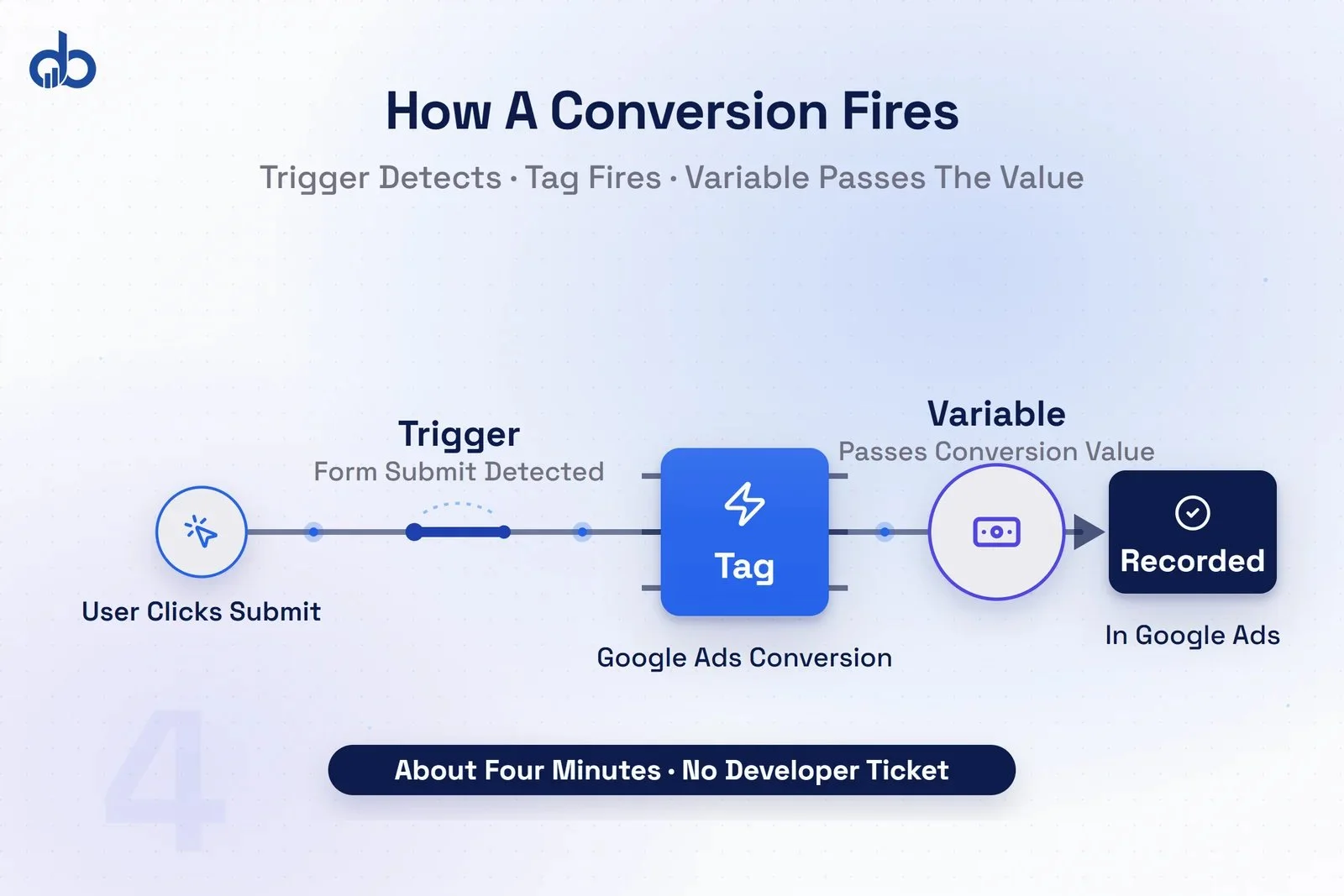
Conversion tracking is where Google Tag Manager pays off fastest for performance marketers. Without GTM, adding a Google Ads conversion tag means a developer edit. With GTM, it takes about four minutes.
Google Ads Conversion Tracking: In GTM, create a new tag using the “Google Ads Conversion Tracking” template. Enter your Conversion ID and Conversion Label (both from your Google Ads account under Tools → Conversions). Set the trigger to fire on your thank-you page URL or on a form submission success event. Name it: Google Ads - Conversion - Lead Form Submit.
Custom event tracking as part of your digital marketing tracking stack: GTM includes built-in trigger types that capture user behavior without any developer involvement:
- Scroll Depth triggers fire when users scroll 25%, 50%, 75%, or 90% down your page — showing you where visitors disengage before converting
- YouTube Video triggers track when visitors play, pause, or complete embedded videos
- Click Element triggers fire when a user clicks a specific button, link, or element identified by CSS selector
Here’s a concrete example. You’re running a paid campaign to a landing page with three CTAs and you want to know which one drives the most form completions. With GTM, you set Click triggers on each button, fire a custom GA4 event on each click, and within 48 hours you have the answer. No developer required, no sprint queue.
In one client GTM audit our team ran, we found three Meta Pixel tags firing simultaneously on the checkout page — a legacy hardcoded pixel, one deployed via a Shopify app, and one added via GTM. Consolidating to a single GTM-managed pixel eliminated a 23% discrepancy in reported Meta conversions and gave the client’s bidding algorithm accurate purchase signals for the first time. This is precisely what a proper digital marketing tracking setup prevents from the start.
Why GTM Is More Than a Tag Container
Most GTM tutorials stop at the mechanics. What they miss is the strategic shift GTM creates for your team.
Marketing independence from development cycles. Before GTM, deploying a new tracking pixel required a developer, a code review, a deployment, and a wait of days. With GTM, your team deploys a new LinkedIn Insight Tag before lunch. That speed is a competitive advantage — while your competitor waits on their sprint queue, you’ve already built three weeks of audience data.
A single source of truth for all channel tracking. Meta Pixel, LinkedIn Insight Tag, TikTok Pixel, Pinterest Tag, Hotjar, Intercom — all live in one GTM container, firing consistently on the same triggers. When digital marketing tracking lives in separate places, inconsistencies creep in. Different tools fire on different conditions, data doesn’t match, and you spend hours reconciling reports instead of acting on them.
Rapid experimentation capability. GTM’s traffic allocation trigger lets you fire a tag on a percentage of visitors. You can instrument A/B tests at the tracking layer without changing your website — a capability most teams don’t realize exists.
Server-side GTM: the 2026 frontier. Traditional GTM runs in the browser. Ad blockers now intercept 20–40% of browser-based tracking scripts before a single event reaches your reporting, and ITP (Intelligent Tracking Prevention — Apple’s Safari cookie restriction technology) shortens cookie lifespans that your attribution depends on. Server-side GTM moves the tag-firing logic to a cloud server. Your user’s browser sends events to your server, and your server forwards them to Google Ads, Meta, GA4, and other platforms. The result: better data accuracy, improved page load speed, and a privacy-compliant first-party data strategy that doesn’t depend on third-party cookies.
Server-side tagging has moved from advanced to mainstream since 2025. If your business runs significant media spend, the measurement accuracy gains are worth evaluating.
The marketers winning on data aren’t those with the most tools. They’re the ones who centralized their digital marketing tracking and actually trust their numbers.
Ready to build a marketing stack you can trust? Get Free Marketing Audit
Common GTM Mistakes and How to Avoid Them
GTM gives you control. Control misused creates problems.
| Mistake | Impact | Fix |
|---|---|---|
| Leaving old hardcoded scripts running | Duplicate data, inflated metrics, broken attribution | Audit existing scripts before GTM launch; remove every script you add to GTM from the codebase |
| Skipping Preview Mode before publishing | Broken conversions go undetected; you lose campaign data | Test every tag in Preview Mode; check GA4 DebugView before every publish |
| Zombie tags accumulating | Slower page loads; confusion when auditing; risk of firing outdated pixels | Quarterly audit; archive unused tags; document each tag's purpose and owner |
| Triggers that are too broad | Tags fire on wrong pages or events; conversion data becomes unreliable | Use specific Page URL contains, Element ID, or custom event triggers instead of "All Pages" or "All Clicks" |
| No naming convention | 40 tags labeled "Tag 1," "Untitled Tag," "New Conversion" — impossible to audit | Adopt format: [Channel] - [Event Type] - [Location], e.g., Google Ads - Conversion - Lead Form |
| Consent Mode not configured | GDPR/CCPA violations; restricted data in EU markets | Implement GTM's built-in Consent Mode v2; integrate with your consent management platform before any tag fires |
The sixth mistake is the one most tutorials skip entirely. Google Tag Manager’s Consent Mode v2 allows tags to adjust their behavior based on what a user has consented to. If you operate in the EU or California and run any tags that set cookies, you’re legally required to configure this. GTM handles it natively — but it doesn’t set itself up.
GTM Use Cases for Social Media and Email Marketing Tracking
GTM is the fastest way to build consistent tracking infrastructure across every marketing channel — social media and email included.
Social media pixel deployment: Instead of separately pasting the Meta Pixel code, LinkedIn Insight Tag, TikTok Pixel, and Pinterest Tag into your site’s theme files — and updating each one when the pixel vendor changes the spec — you deploy all four from GTM. One container. One set of triggers. When Meta releases a new pixel specification, you update one tag in GTM instead of searching across your codebase.
Email marketing automation tracking: When subscribers click through from your email campaigns, their sessions arrive with UTM parameters — utm_source=email, utm_campaign=july-launch. GTM captures those parameters as variables and fires specific conversion events tied to email traffic, letting you measure revenue per email campaign beyond just opens and clicks. This turns basic email marketing automation reporting into full attribution.
Remarketing audiences by behavior: The real power of GTM is behavioral audience building. Instead of remarketing to everyone who visited your site, you set GTM triggers to fire remarketing tags only when users complete specific behaviors — visiting your pricing page, reaching a certain scroll depth, or adding a product to cart without completing checkout. These behavioral audiences consistently outperform broad site-visitor pools because you’re reaching users who already showed purchase intent.
Personalization signals: Tools like Optimizely or VWO can receive GTM data layer signals to serve different content based on user behavior — a return visitor sees a different hero message than a first-time visitor, driven by a GTM-managed data layer push.
When deploying social pixels via GTM, use the GTM Consent Mode v2 integration with your cookie banner. Tags should only fire for users who have consented to tracking in their region — GTM's consent API handles this automatically once configured correctly.
How to Audit and Maintain Your GTM Container
A GTM container that hasn’t been audited in twelve months is usually a liability. Tags from old campaigns still load. Triggers are broader than they need to be. Scripts from vendors you no longer work with fire on every page.
Quarterly audit checklist:
- Sort the Tags list by last modified date — any tag untouched for more than six months needs a review
- Check triggers: are any using “All Pages” or “All Clicks” that could be scoped more precisely?
- Look for duplicate tags firing the same pixel under slightly different names
- Check version history: are there unpublished drafts sitting in the workspace? Publish or discard them
- Run Preview Mode on your key pages — confirm that only expected tags fire on each
A clean GTM container doesn’t just protect your data quality. It also reduces your third-party script load, which improves page speed scores and keeps your site performing well in Core Web Vitals assessments — both of which affect your paid and organic performance.
Rollback capability: Every GTM publish saves a named version. If a new tag breaks something, you roll back to the previous version in under 60 seconds from the Versions panel. That’s dramatically safer than direct code edits, where rollbacks require a full developer deployment.
Access control: GTM has four permission levels — Read, Edit, Approve, and Publish. Only trained team members or agency partners should have Publish access. Content managers and junior marketers get Edit access at most.
Running a quarterly audit takes less than an hour. Cleaning up a year of neglected container debt takes a week.
Advanced: Integrating GTM with GA4 Enhanced Ecommerce
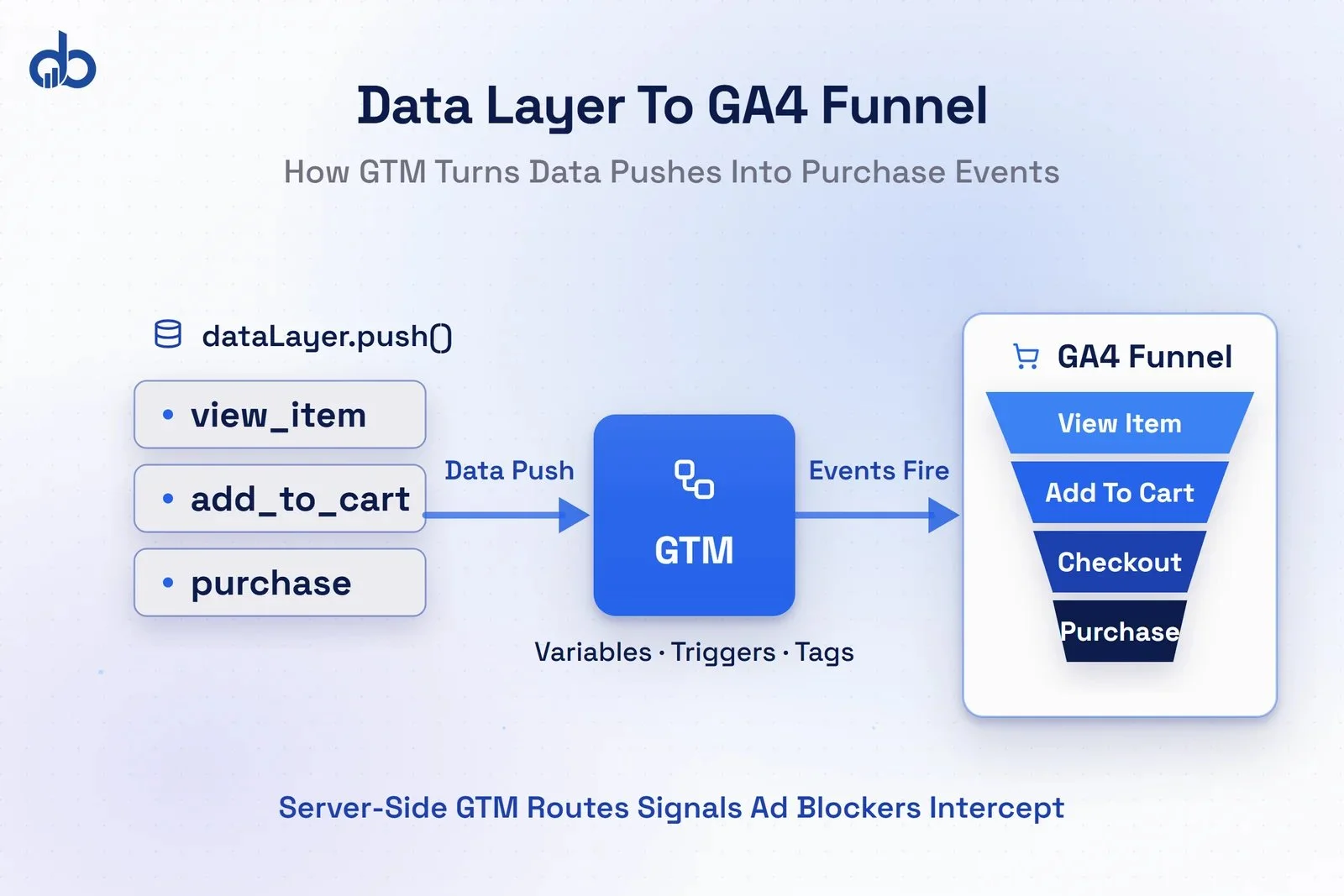
For ecommerce businesses, enhanced ecommerce tracking in GA4 gives you full funnel visibility: product impressions, add-to-cart events, checkout step completions, and purchase confirmations. GTM is the cleanest way to implement this without hardcoding dozens of events across your site.
How it works: Your development team pushes ecommerce data to the data layer when key actions occur — a user views a product, adds it to cart, or completes a purchase. GTM reads those data layer pushes, extracts product name, ID, price, and quantity using variables, and fires corresponding GA4 event tags (view_item, add_to_cart, purchase) with all the details attached.
The result is a complete purchase funnel in GA4. You can see exactly where users drop off, which products are viewed most versus purchased most, and how checkout steps perform across device types. None of that is possible with basic GA4 page-view tracking alone.
For high-traffic ecommerce sites, server-side GTM takes this further. Ad blockers intercept 20–40% of browser-side tracking signals including purchase events, which means your bidding algorithms are optimizing on incomplete conversion data. Server-side GTM routes those signals through your own server, dramatically improving signal completeness and giving Smart Bidding cleaner data to optimize against.
If your ecommerce measurement is a priority, Digiblazon’s Analytics & Tracking team can audit your existing GA4 and GTM setup and rebuild the data layer to capture the full purchase funnel accurately.
Conclusion
Google Tag Manager isn’t a technical tool that belongs to your development team. It’s a marketing independence platform that gives your team the ability to deploy, test, and iterate on tracking at the speed your campaigns actually require.
You’ve set up GTM, connected GA4, built conversion tracking without touching code, deployed social pixels centrally, learned to avoid the mistakes that silently corrupt data, and seen how GTM scales into ecommerce and server-side tracking. The only thing left is to put it to use.
The marketing teams winning on data don’t guess which campaigns worked — they know. Reliable tracking infrastructure is what makes that possible, and GTM, properly configured, is its foundation.
If your GTM container has accumulated zombie tags, overlapping triggers, or inconsistent pixel configurations, Digiblazon’s Analytics & Tracking team can audit your entire setup and rebuild it into a clean foundation for every campaign you run.
- Google Tag Manager commands 94% of the tag management market, powering 5.4 million active domains — it is the standard infrastructure layer for digital marketing tracking.
- GTM's three core building blocks are Tags (scripts that run), Triggers (when they fire), and Variables (dynamic values they use) — understanding this eliminates most setup confusion.
- Always test every tag change in GTM's Preview Mode before publishing; a broken trigger can corrupt conversion data across your entire ad account silently for weeks.
- Running GA4 both hardcoded and via GTM sends every event twice — remove hardcoded snippets once you deploy them through GTM to prevent inflated session counts and broken attribution.
- Ad blockers intercept 20–40% of browser-based tracking signals; server-side GTM routes events through your own server to dramatically improve signal accuracy for Smart Bidding.
- Quarterly GTM audits — reviewing zombie tags, overly broad triggers, and naming consistency — protect data quality and maintain page performance through Core Web Vitals.
Frequently Asked Questions
What is Google Tag Manager and how does it work?
Google Tag Manager is a free tag management system that lets you deploy and manage all your marketing tracking scripts from a single dashboard. You install one GTM snippet on every page of your website, and from that point you add, edit, or remove tags — like Google Analytics 4, Google Ads conversion tracking, and Meta Pixel — without touching your site's code again.
Is Google Tag Manager free to use?
Yes, the standard version of Google Tag Manager is completely free. Google also offers a paid enterprise product called Tag Manager 360 for large organizations needing advanced features, SLA guarantees, and dedicated support, but the free version covers the full range of tracking needs for most businesses.
What is the difference between Google Tag Manager and Google Analytics?
Google Analytics collects and reports on your website data. Google Tag Manager deploys the scripts — including the GA4 tracking code — that send that data to Analytics. They serve complementary roles: GTM is the delivery mechanism, and GA4 is the reporting tool. You can run GA4 without GTM, but using GTM gives you centralized control over all your tracking without requiring developer help for every change.
Does Google Tag Manager slow down my website?
GTM loads tags asynchronously, meaning they fire in parallel with your page content rather than blocking it. This is generally faster than having multiple tracking scripts hardcoded directly in your site's HTML. That said, a poorly maintained GTM container with dozens of firing tags can still affect page load — quarterly audits and removing zombie tags keep performance tight.
What is server-side GTM and when do I need it?
Server-side GTM moves the tag-firing logic from the user's browser to a cloud server you control. Instead of each user's browser sending tracking events to Google, Meta, and other platforms directly — where ad blockers can intercept 20–40% of them — the events go to your server first, then your server forwards them. This improves data accuracy significantly and supports first-party data strategies that don't rely on third-party cookies. It's most valuable for businesses running significant media spend where conversion signal quality directly affects Smart Bidding performance.